https://www.youtube.com/watch?v=ijIot9aCrG8&t=3s
Revolve a sketch profile around a selected axis
With sketch (line), create an irregularly-shaped profile that is closed at the origin. > Finish sketch.
Then select Create > Revolve, and select the axis of the drawn object itself to make the rest rotate and fill around it.
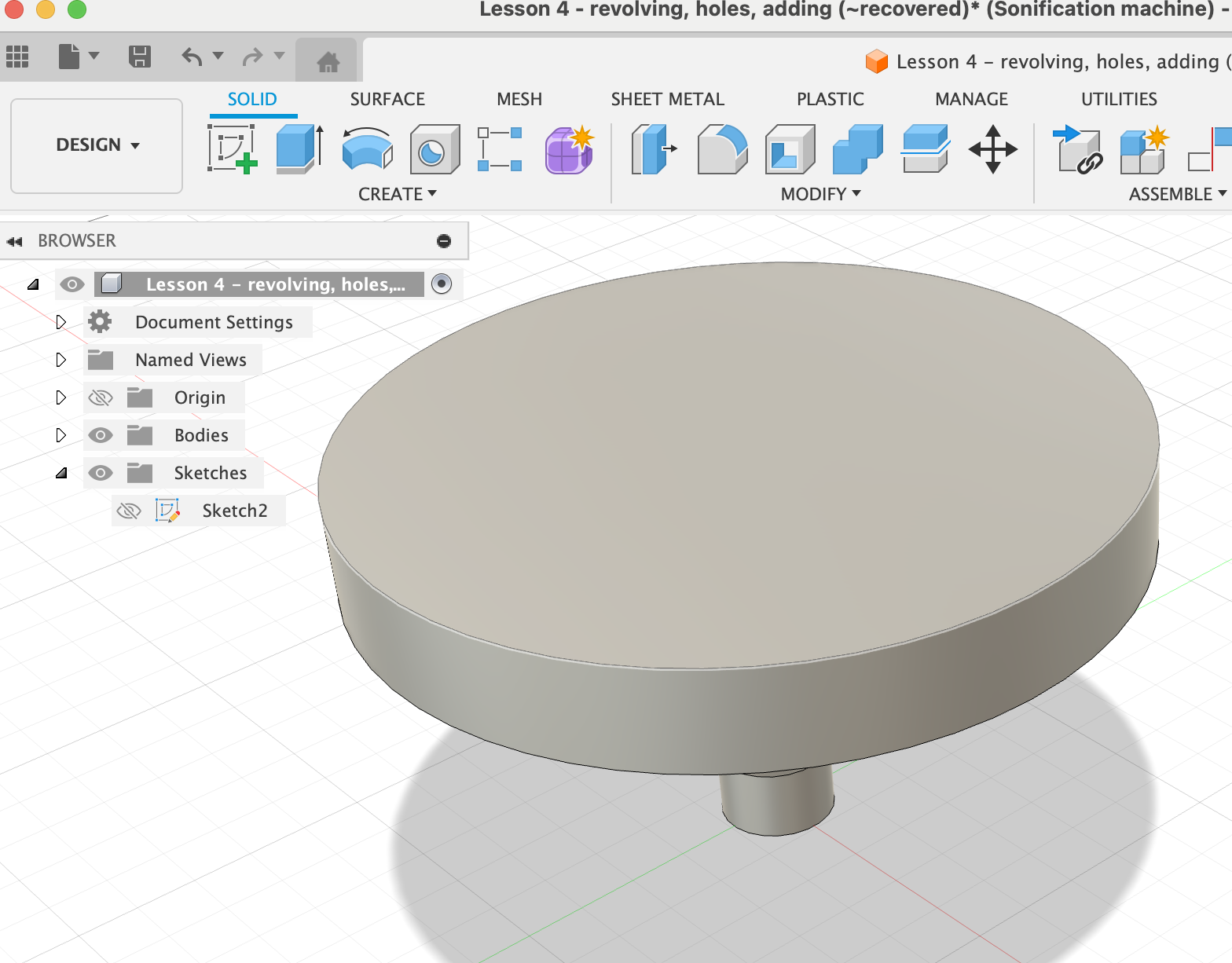
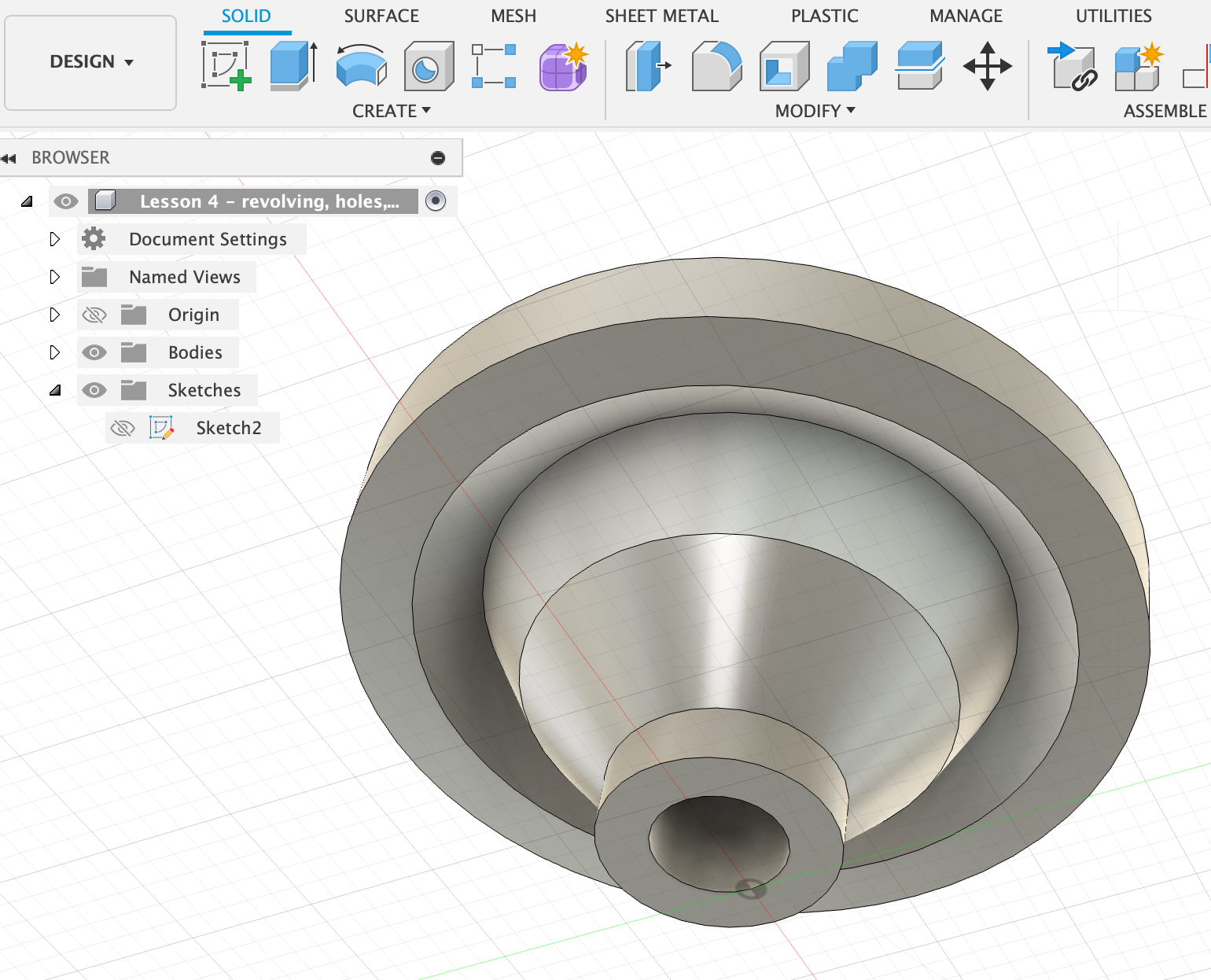
You can also go back to the sketch (Right-click on the object > Edit Profile Sketch), add a vertical line next to the profile, but slightly away, and then revolve around that axis. That will create an object with a hole in the middle.
Sweeps Take a sketch profile and extrude it along a defined path. Sketch a profile on the vertical (front) axis, finish sketch. Then sketch a line profile (path) on the bottom axis. Create > Sweep: select the first profile as Profile and the second profile as Path. The object is no extruded along the path.
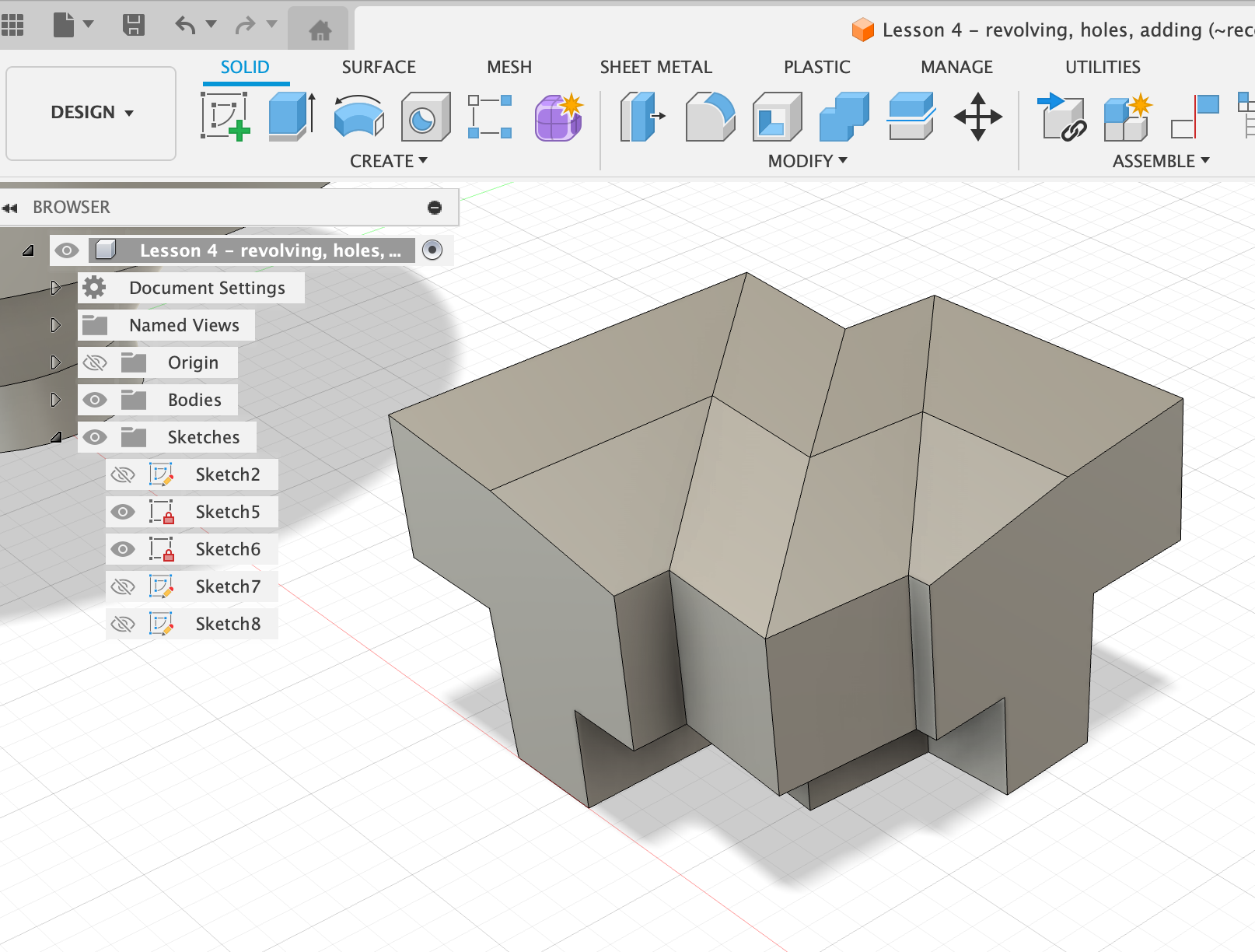
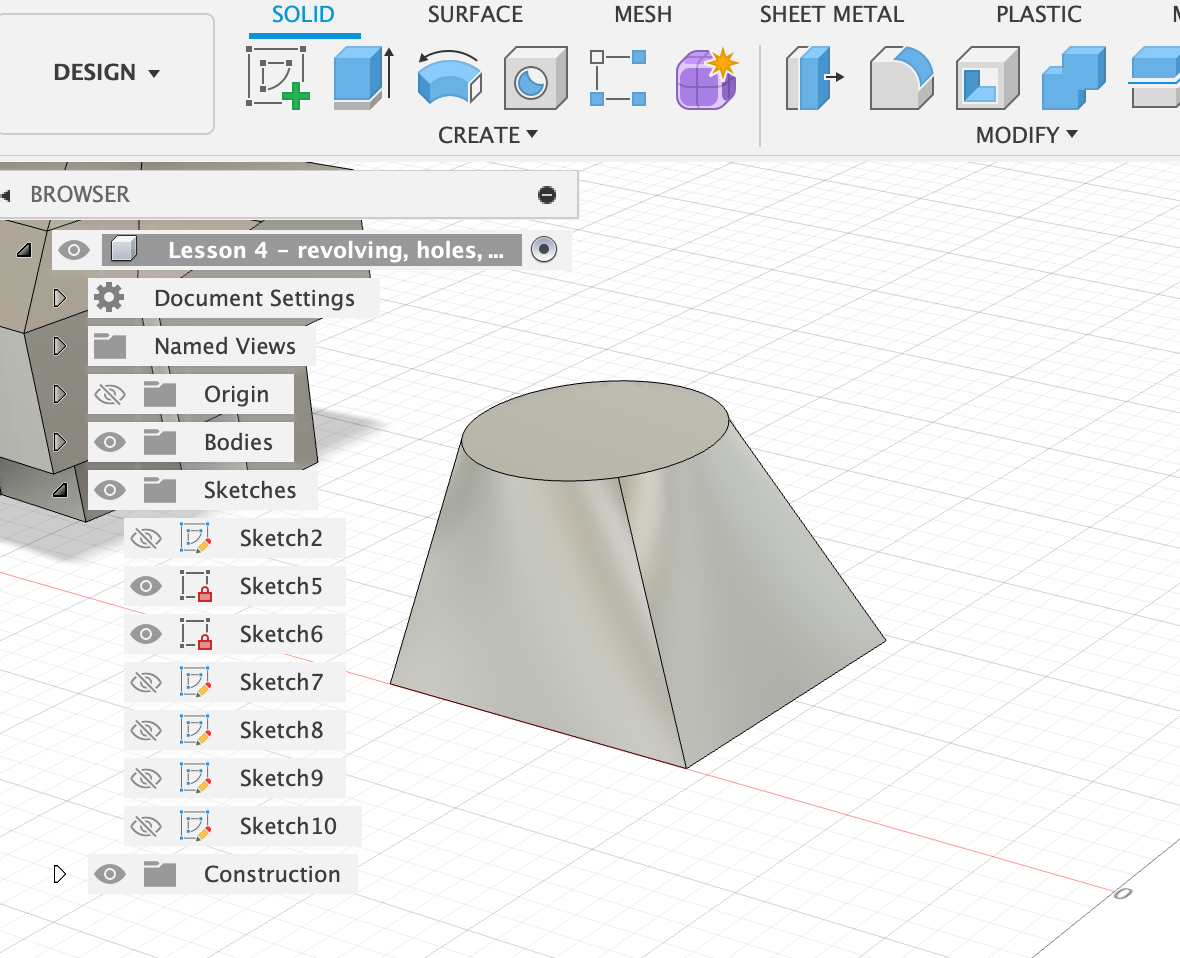
Offset plane & Lofting Creates a transition shape between two or more planar profiles. On the bottom plane, make a sketch of a square. Now I want a circle somewhat above the square. That’s tricky to do (it’s hovering in the air), but I can make a helper plane (offset plane) a certain distance away from the original plane. Select: Offset plane (above the Construct tab), select the square we just drew, and give it a distance, e.g. 40 mm. Now when I click Create sketch, I can select this offset plane and draw on it. Draw a circle on the offset plane. Finish sketch. The select Create > Loft, and select with the little plus sign both objects, the square and the circle. They will then be connected and extruded.
Remove material
Sketch a square on the bottom. Extrude upwards to get a cube.
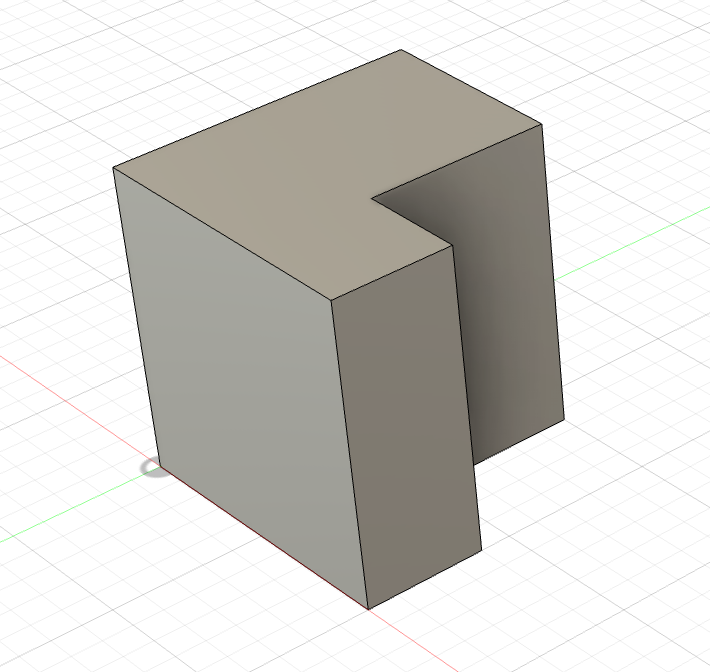
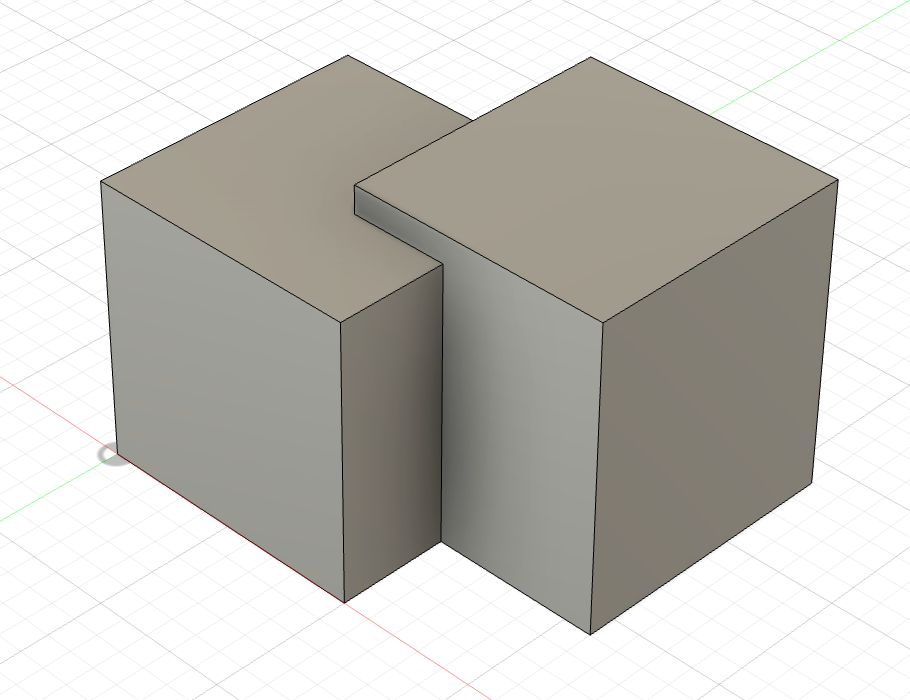
Sketch another square the cuts into the first square. Extrude upwards to get another cube.
Because it cuts into the space of the first object, the second square appears red. You can select in the right-hand menu how the two objects should interact.
Cut:
Join:
Intersect: Just leaves the sliver that is the intersection between the two objects
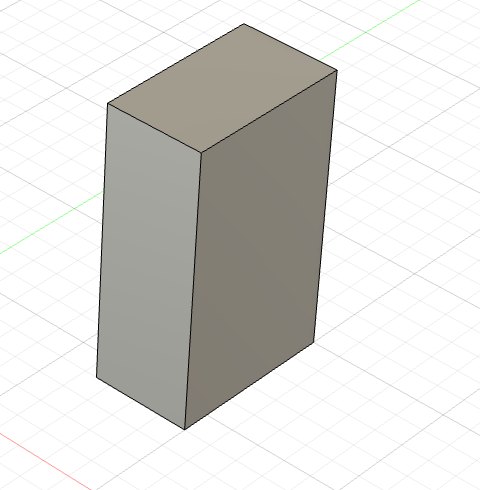
New Body:
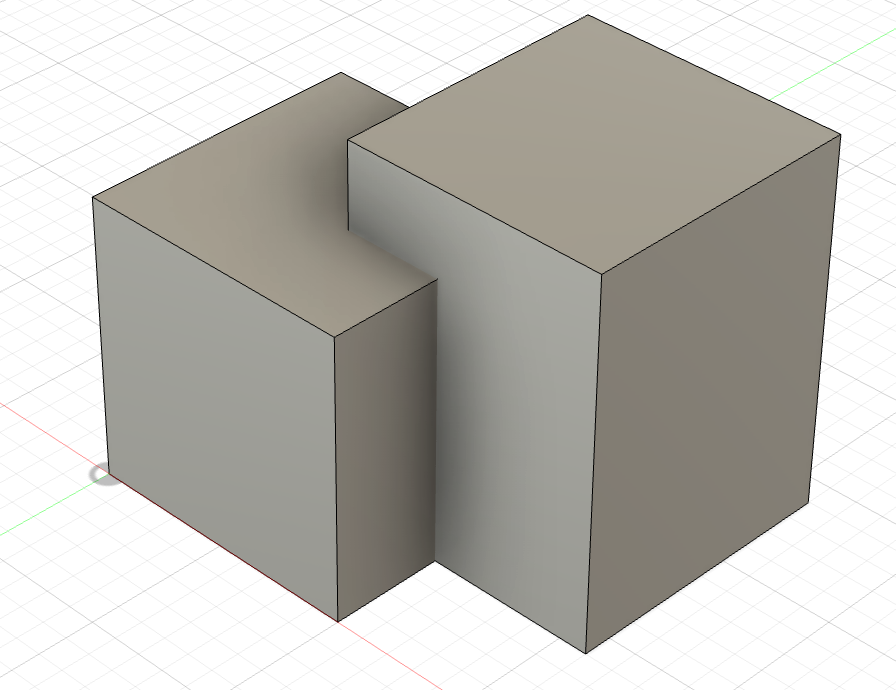
You can make cool cut-out of different objects, by placing others on top of it:
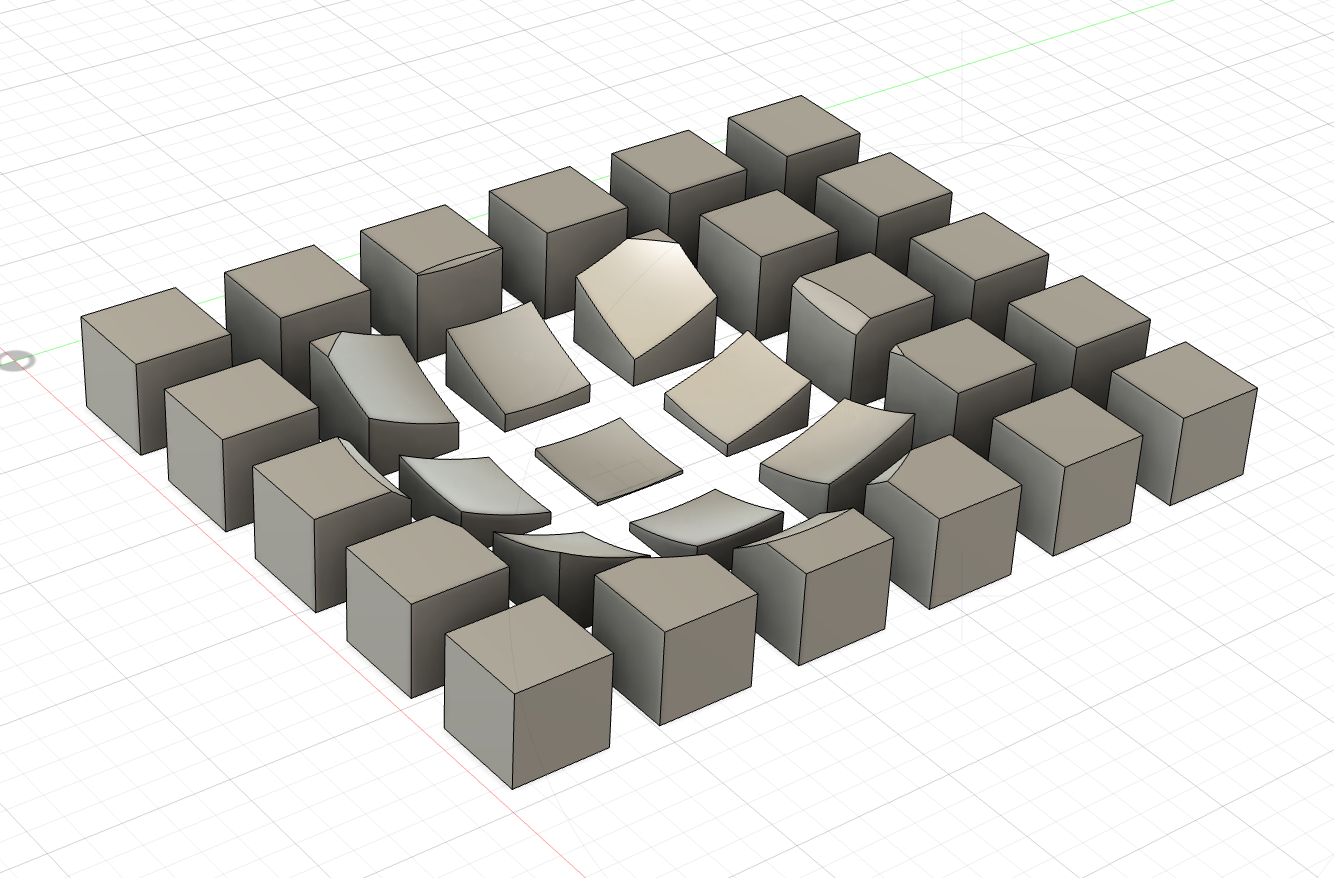
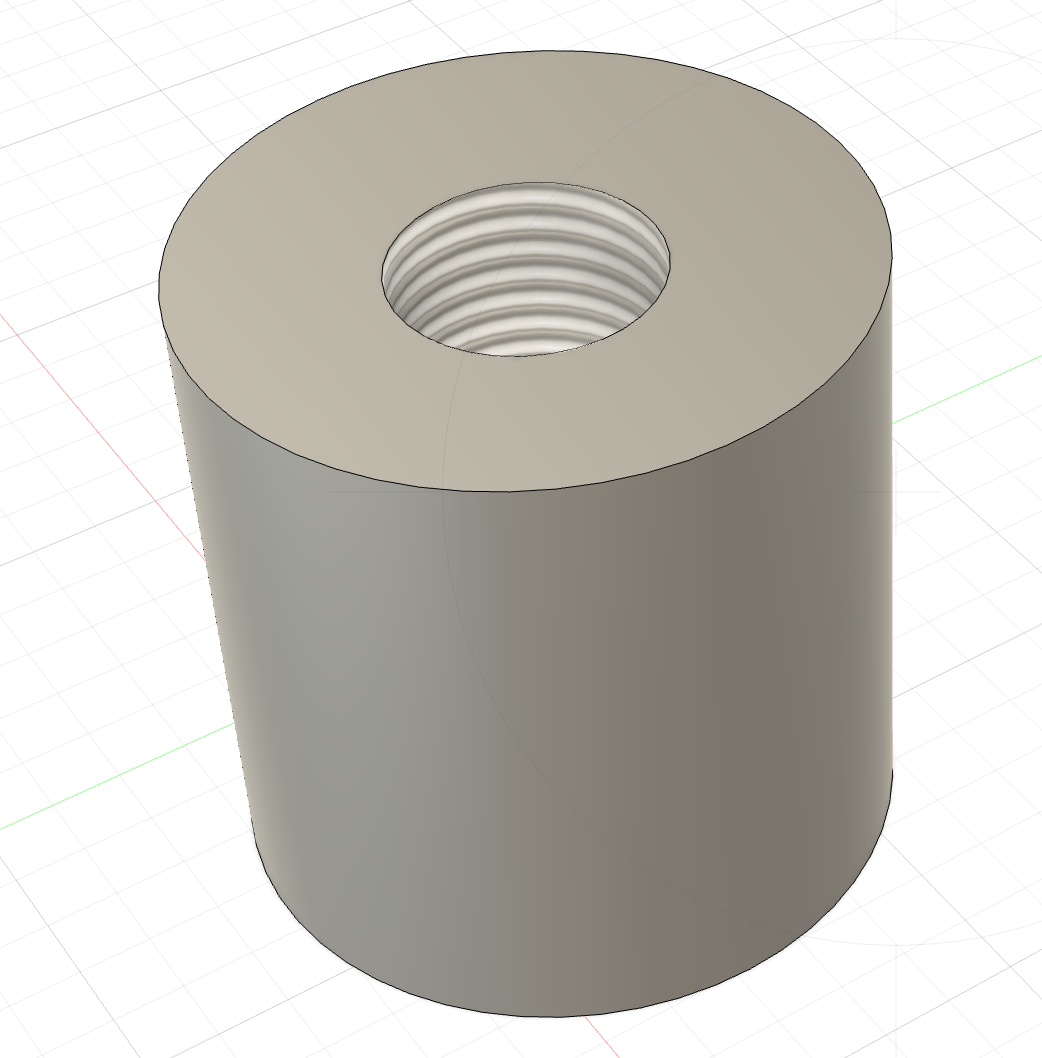
Hole Draw and extrude an object, e.g. a cube. Select Create > Hole, then place the marker on the cube (e.g. in the middle) and extrude downwards as long as you want the hole to be.
You can also choose if the whole should just have straight sides, or if it should be a drill hole with a tapped bottom, or even screw threads.